
Blur faces in photos and videos, on your iPhone
Deface finds faces automatically in photos and video. Choose blur, pixels, solid colour, an emoji or an Eye Bar, then check the result before you share it.
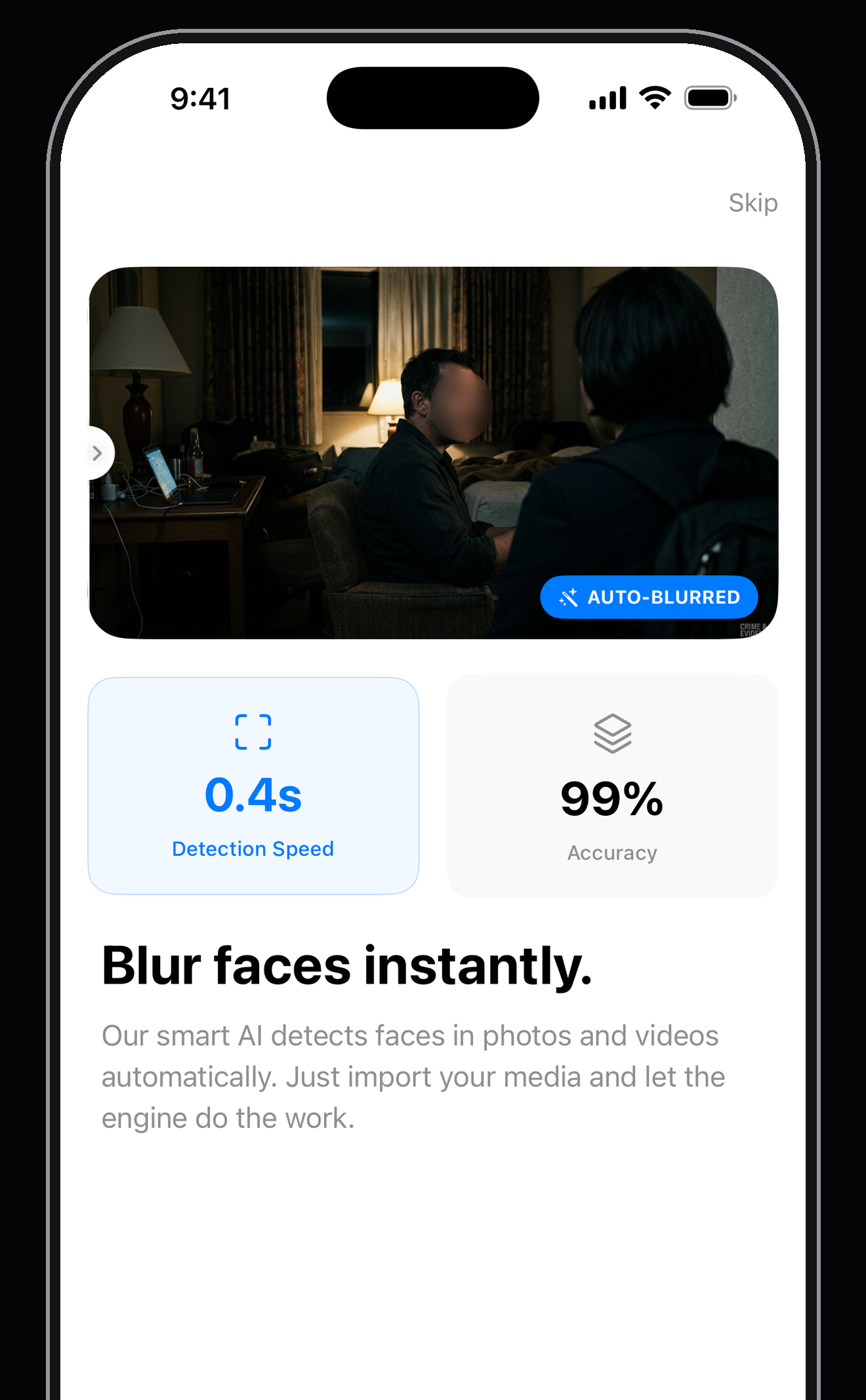
How to blur a face in three taps
There is no timeline to scrub, no mask to keyframe and no tracking to set up. Import, confirm, export.
- Pick a photo, a video or several photos. Deface reads them from your library and lets you edit up to five photos in one batch.
- Let it detect. On-device face detection finds faces and follows them through video. Tracking has been improved to keep censors aligned as people move and turn. You can leave individual faces visible.
- Check, style and export. Pinch to zoom into a photo, adjust any missed region, then choose blur, pixelate, solid colour, emoji or Eye Bar. Free exports have separate daily photo and video allowances.
Five ways to hide a face
A blur reads as documentary. Pixels read as broadcast TV. A solid cover hides the whole face. An emoji is playful. An Eye Bar covers only the eyes. Deface lets you switch among these styles after detection, without re-processing.
Gaussian blur softens the face while keeping the shape of the head — best for street photography and travel shots where the person is incidental.
Pixelate breaks the face into blocks. It is the most recognisable 'this was deliberately hidden' signal, which matters when you want viewers to know a choice was made.
Solid colour covers the region completely. The safest option, and the only one that removes all facial information from the pixels.
Emoji sticker places an emoji over the face at the right scale and angle. Choose from the built-in set or add your own.
Eye Bar places a narrow solid bar across the detected eyes and follows the face's angle. It leaves the rest of the face visible, so use a full-face cover when identity protection matters more than the look.
Edit several photos in one pass
Select up to five photos together. Deface detects faces in each one, then shows the set in a filmstrip so you can check each photo, change its regions and export the batch together.
Pinch to zoom into a photo while editing. It helps you check small faces and the edges of a censor before you save the result. A finished batch counts as one photo export against the daily allowance.
Faces are not the only thing worth hiding
Detection handles people. Manual regions handle everything else: a licence plate in the driveway, a street sign that gives away the neighbourhood, a tattoo, a name badge, an address on an envelope, a phone screen with a notification on it.
Draw a box, drag it where you want it and size it with precision controls. Give it a blur, pixel, solid, emoji or Eye Bar treatment. Manual regions stay at the chosen position across a video; check them if the subject moves.
Blurring a face does not change its metadata by itself. Deface re-renders photo exports without the source EXIF or GPS data. For video, use the separate Remove metadata control when you want to clear identifying details from the exported file.
Nothing leaves your phone
Most face blurring tools are websites. You upload the photo you were trying to keep private to a server you do not control, and it is processed somewhere you cannot see.
Deface does detection and rendering on the device. There is no account or media upload, and it works in airplane mode. The photo you were protecting stays on your phone.
Guides
How to blur a face in the app you already have — and why it takes ten seconds in Deface.
Blur a face in CapCut
Effect, mask and tracking, set up face by face — and a faster way on iPhone.
Blur a face in DaVinci Resolve
A node, a window mask, and the Tracker palette — Resolve's tracking is strong.
Blur a face in Final Cut Pro
Gaussian filter, a shape mask, and the Tracker behavior, done properly.
Blur a face in Google Photos
The Blur slider isn't for this — the Markup pen is. Here's how, and a faster way.
Blur a face in iMovie
iMovie has no blur tool — the honest workaround, and a faster option.
Blur a face in InShot
Mosaic sticker, placed and tracked one face at a time — and a faster way.
Blur a face in Photoshop
The Blur Gallery, a layer mask, and full control over the edge.
Blur a face in PicsArt
The Blur brush covers a face by hand — here's how, and a faster automatic way.
Blur a face in Premiere Pro
Gaussian Blur, a mask, and the built-in tracker, done properly.
Blur a face in Snapseed
The Lens Blur tool works backwards for this — here's the real workaround.
Blur faces in a video on iPhone
No built-in tool tracks a moving face. Here's what to use instead.
Blur a number plate in a photo
Cover a licence plate in a photo or dashcam clip in about ten seconds.
Add a censor bar over eyes
Use Deface's Eye Bar style on a detected face in a photo or video.
Put an emoji over a face
Drop any emoji over a detected face, sized and angled to fit.
Pixelate a face
When to use pixelation over a blur or a solid block, and how to do it.
Remove location data from a photo
What's actually in the file, and what strips it on iPhone.
Frequently asked questions
Can Deface blur faces in video, not just photos?
Yes. It detects faces frame by frame and tracks them as they move, so a face stays covered as the subject walks across the shot. Export keeps the original resolution and frame rate.
Does it work without an internet connection?
Completely. All detection and rendering happens on the device, so Deface works in airplane mode. Nothing is uploaded at any point.
Is there a watermark on exported photos and videos?
Free exports include a small Deface badge. The free daily allowance is one video export and three photo exports, counted separately. A photo batch counts as one export.
Can someone un-blur a face that Deface has hidden?
The blur, pixelation and solid styles are destructive: the original pixels are discarded when you export, not hidden behind a layer. There is no original underneath to recover. If you want the strongest option, use the solid style, which removes all facial information rather than scrambling it.
What if it misses a face, or blurs one I wanted to keep?
Every detected face has its own toggle, so you can leave some visible and hide others. If a face is missed — because it is turned away, in shadow or very small — add a manual region over it.
Does Deface remove location data from my photos?
Photo exports are re-rendered without source EXIF or GPS. Video has a separate Remove metadata control for identifying details such as location, date and device information.
Every face, in one tap.
Import a photo, a video or a photo batch. Detect faces, choose a style and export.