How to blur faces on Android, in photos and videos
Neither Google Photos nor Samsung Gallery has a face blur button. You can cover a face by hand in either, or use an app that finds every face for you. Both routes, step by step.
The short answer
Android has no built-in face blur. The quickest way is a face blur app: Deface detects every face in a photo or video on the phone, blurs it, and saves a new copy to your gallery. Pick the photo, check the result, tap Save. If you only need to hide one face in one photo and don't want to install anything, the drawing tools in your gallery app can cover it by hand, but the result looks like a scribble rather than a blur.
What follows covers both, plus video, where the manual route gets much slower.
Blur a face on Android with Deface
Deface runs on Android 10 and later. It uses Android's own photo picker, so it doesn't ask for access to your whole library.
- Install Deface from Google Play and open it. There is no account to create and nothing to sign in to.
- Pick a photo, a video or several photos. The free version takes up to five photos in one batch.
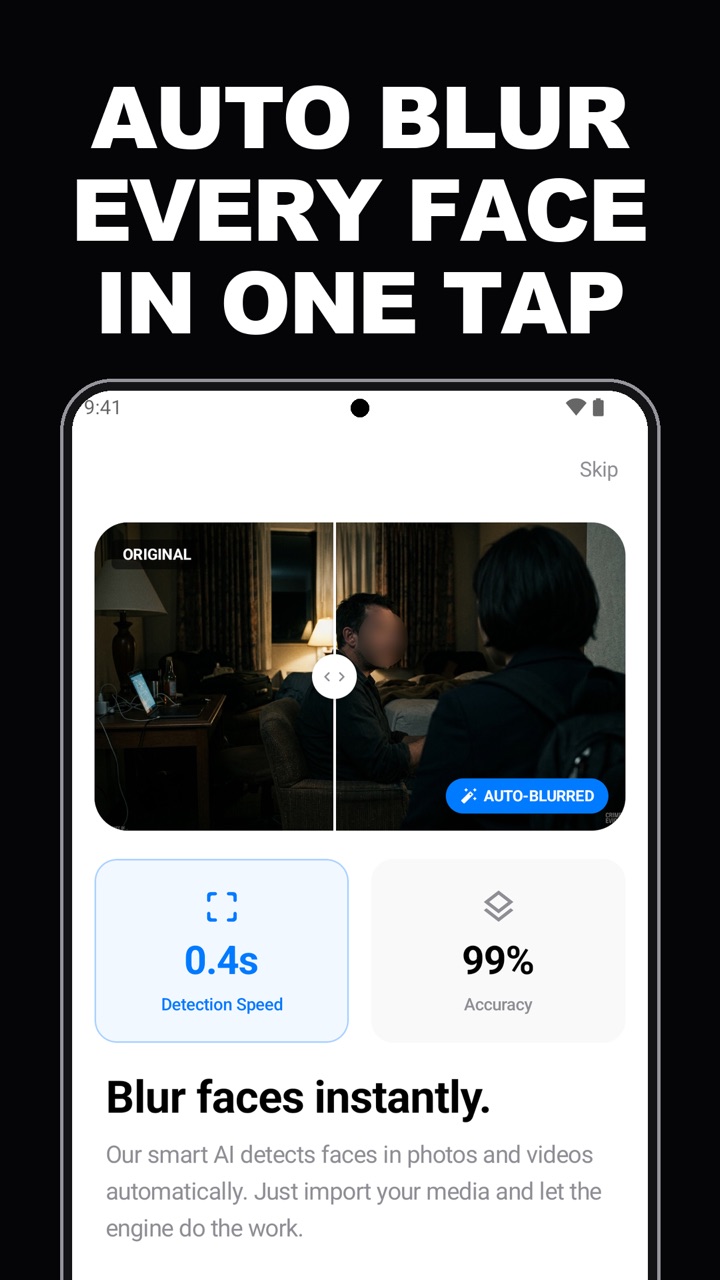
- Let it detect the faces. Detection runs on the phone. Each face it finds gets a censor that tilts with the head, so a face turned to one side is still covered.
- Tap any face you want to keep visible. Every face has its own toggle, so you can hide the strangers in the background and leave your friend in the middle.
- Choose a style. Gaussian blur, pixelate, solid colour, emoji or an Eye Bar. You can switch styles without running detection again, and resize the censor in the Size panel.
- Add anything that isn't a face. In the Regions panel, draw a box over a licence plate, a name badge or a screen, then move and resize it.
- Save or share. Photos save to
Pictures/Defaceand videos toMovies/Deface. Share sends the result straight to WhatsApp, Instagram or any other app without saving an extra copy.
Blurring a face in a video on Android
Video is where an automatic tool earns its place. Deface reads every frame of the clip, finds the faces and follows each one as people move and the camera pans. If the detector loses a face for a moment, the censor keeps moving with the scene rather than dropping off. A hard cut starts fresh tracks, so a face you switched off in one shot doesn't pass that setting to someone else in the next.
Analysis happens on the phone, so it takes longer than a photo. On a mid-range Android phone, a five-second 1080p clip under Maximum detection takes around 40 seconds. Scrub through the result before you share it: automatic detection can miss a face that is very small, in deep shadow or turned fully away, and a manual region fixes that.
The free version exports one video a day with a small Deface badge. Blurring a face in CapCut or InShot is the free alternative with no daily limit, but you place and track a mask for each face yourself.
Hide a face without installing anything
Samsung Gallery and Google Photos both have drawing tools in their editors. Neither detects faces, but you can paint over one. Some versions of Google Photos also add a blur brush to Markup; if yours has it, use it in place of the pen.
- Open the photo and tap Edit. In Google Photos, look for the Markup tool. In Samsung Gallery, the drawing and sticker tools sit in the editor's decoration section.
- Pick the pen, a solid colour and the thickest stroke. Avoid the highlighter: it is translucent and the face shows through.
- Colour over the whole face, then zoom in and check the edges. Any gap at the hairline or chin can be enough to recognise someone.
- Save as a copy. Keep the original until you've checked the edited version.
Where the manual way falls short
It works for one face in one photo. With a group shot you are painting each face by hand, and the finished photo looks scribbled on, which matters if you're posting it. On video it doesn't work at all, since neither gallery app can draw over a moving subject. Google Photos covers the same ground for its own editor in more detail, and Snapseed can produce a real blur on Android, through a five-step layering workaround.
A blurred face can still give away where a photo was taken. Photos from an Android camera usually carry GPS coordinates in their EXIF data. Deface writes its JPEG exports without the source EXIF, and its video exports drop the location and capture date. If you blur a face in another app, check its export settings, or see removing location data from a photo.
Ways to blur a face on Android, compared
| Gallery / Google Photos | CapCut or InShot | Deface | |
|---|---|---|---|
| Finds faces for you | No | No, you place each mask | Yes |
| Looks like a blur | No, a painted cover | Yes | Yes, or pixels, emoji, solid, Eye Bar |
| Video | No | Yes, with tracking per face | Yes, every face tracked |
| Several faces | Paint each one | One mask per face | All at once, toggle any off |
| Works offline | Yes | Editing, yes | Yes, nothing is uploaded |
| Cost | Free | Free, paid tiers | Free with daily limits, Pro for unlimited |
Frequently asked questions
Does Samsung Gallery have a face blur tool?
Not a dedicated one. The Gallery editor can blur a portrait background when the photo was taken in a portrait mode, but it can't blur a single face. Its drawing tools can paint over a face, or you can use a face blur app.
How do I blur a face in a video on Android for free?
In a free video editor such as CapCut or InShot, add a blur or mosaic effect, mask it to the face and turn on tracking, then repeat for every face. Deface does it automatically, and its free version exports one video a day with a small badge.
Can I blur faces on Android without uploading my photos?
Yes. Deface detects and renders faces on the phone and works in airplane mode, with no account. Many websites that blur faces process the photo on their server, so check before you upload anything private.
Is Deface the same on Android and iPhone?
Same styles, per-face toggles, manual regions, batch photos and free daily allowance. The one difference is video metadata: on iPhone there is a Remove metadata switch, while on Android every video export drops location and capture date automatically.
Keep reading
Best face blur apps
Seven apps for blurring faces on iPhone and Android, compared on video, privacy and price.
Blur a face in CapCut
Effect, mask and tracking, set up face by face — and a faster way on iPhone or Android.
Blur a face in Google Photos
The Blur slider isn't for this — the Markup pen is. Here's how, and a faster way.
Blur part of a picture
Faces, text, screens or plates: blur one area of a photo on iPhone or Android.
Blur every face on your Android phone.
Pick a photo or video, check the faces Deface found, and save. Nothing leaves the phone.